CRM SOFTWARE
Zendesk Sell vs Pipedrive: How Pipedrive supports the sales process

By Geethapriya
Last updated on Sep 30, 2026
Explore the article to understand how Pipedrive is a better alternative to Zendesk Sell, and also whether it supports features and smooth migration for Zendesk Sell.
Geethapriya
Updated on Sep 30, 2026
Pipedrive is one of the key CRM options for Zendesk Sell customers, especially after Zendesk announced that Sell will be retired in 2027 and partnered with Pipedrive to support migrations. This has made Pipedrive a natural option for teams evaluating where to move next.
If you’re considering Pipedrive, here’s a detailed look at Zendesk Sell vs. Pipedrive, including their features, module mapping, and migration support, to help you understand how the two platforms compare.
Comparison at a glance
Area | Zendesk Sell | Pipedrive |
|---|---|---|
CRM | Sales CRM for managing leads, contacts, companies, deals, and sales activities | Sales-focused CRM for managing leads, deals, contacts, activities, and pipelines |
Lead management | Separate Leads section for managing and qualifying prospects before converting them into contacts or deals | Leads Inbox for managing prospects before converting qualified leads into deals |
Contact management | Manage person and company contacts, along with their related deals and activities | Manage people and organizations and link them to deals and activities |
Deal management | Create deals, assign pipeline stages, track value, source, close date, and forecast | Manage deals through customizable pipeline stages and track deal progress |
Pipeline management | Visual pipelines with customizable stages and multiple pipelines based on plan | Customizable visual pipelines available across plans |
Activities | Manage tasks, appointments, calls, emails, and other sales activities | Manage calls, meetings, tasks, follow-ups, and calendar activities |
Automation | Sales triggers can automate actions when specific deal conditions are met | Automations can handle multi-step workflows, follow-ups, record updates, and other repetitive tasks |
Reporting | Reports and dashboards for pipeline, sales performance, forecasting, goals, and other sales metrics | Insights reports and dashboards for sales performance, pipeline, activities, and forecasting |
Integrations | Integrates with other Zendesk products and third-party applications | 500+ integrations, including tools such as Zapier, Zoom, and Lemlist |
Data export | Export leads, contacts, deals, notes, tasks, Smart Lists, account data, and reports as CSV; some activity data such as email history, call logs, and documents isn't included in the standard export | Supports importing and exporting CRM data, including spreadsheet-based migration |
Zendesk Sell migration | Source system; data can be exported from Sell | Pipedrive provides a dedicated migration path for Zendesk Sell customers, with data mapping and migration support |
Pricing | Team: $19/user/month; Growth: $55; Professional: $115; Enterprise: $169 | Lite: $14/user/month; Growth: $39; Premium: $59; Ultimate: $79, billed annually |
Free trial | — | 14-day free trial, no credit card required |
Mapping Zendesk Sell features to Pipedrive features
To understand how your sales process fits into Pipedrive. We need to map Zendesk to Pipedrive to understand the features and modules.
Zendesk Sell | Pipedrive | What it means |
|---|---|---|
Leads | Leads | Early-stage prospects that are not yet qualified as deals |
Contacts | Persons | Individual people your sales team communicates with |
Companies | Organizations | Businesses associated with your contacts and deals |
Deals | Deals | Sales opportunities that move through pipeline stages |
Tasks | Activities | Follow-ups, calls, meetings, and other sales activities |
Notes | Notes | Free-form notes attached to leads, deals, people, or organizations |
Tags | Labels | Used to categorize and filter records |
Smart Lists | Filters | Saved views used to segment and find records |
Custom fields | Custom fields | Custom data fields recreated in Pipedrive |
1. Lead management
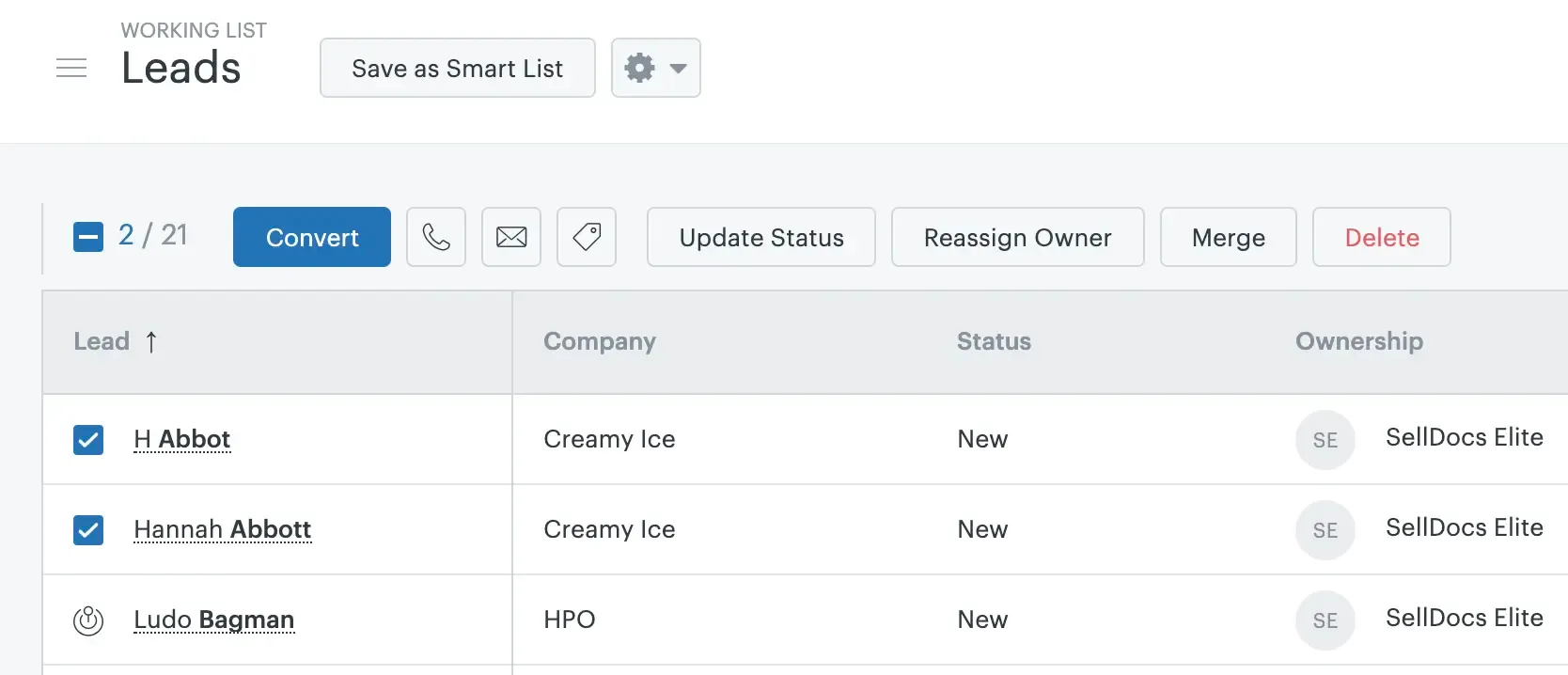
Lead management looks similar in Zendesk Sell and Pipedrive because both have a separate tab for managing leads. In Zendesk Sell, this is called Leads, while in Pipedrive, it is called Lead Inbox.
Both platforms allow you to manage inbound and outbound leads separately, qualify them, and work on them before converting them into deals. Once you select a lead and convert it, the lead is moved to the deal pipeline, and you can create tasks around it for follow-ups.
Source: support.zendesk.com
In both platforms, lead scoring needs to be set up manually. In Pipedrive, you can go to Settings → Score configuration → Score and assign different weights based on activities. These scores are then used to evaluate the leads.
In Zendesk Sell, the process is similar. You can go to Settings → Business Rules → Scoring and manually configure scores for variables such as industry and lead source. The assigned scores are then reflected in the leads.
One advantage of Pipedrive: Pipedrive has a lead booster plan, which helps you identify leads from Pipedrive's database. Pipedrive has the Prospector agent, which helps you identify the right prospect based on your ICP.
2. Contacts management
Contact management in both platforms is used to store basic information about potential customers collected through different channels, including inbound, outbound, and offline events. These contacts can then be linked to associated records such as leads and deals.
In Pipedrive, you can find this under Contacts → People. Each person has an individual contact record where you can view their associated company, deals, activities, notes, and other relevant information needed to manage communication with that contact.
In Zendesk Sell, you can manage contacts under Contacts → People. You can either create contacts individually or import a list of contacts in bulk. To quickly add a new person, you can use the keyboard shortcut C, followed by P. These contact records serve as the foundation for other records in the CRM and can be associated with leads, deals, and other activities.
3. Company
Company management works similarly in both Zendesk Sell and Pipedrive. Companies are used to store organization-level information and connect related contacts, leads, deals, and activities.
In Pipedrive, you can add an organization and link related organizations to it, such as a parent company, subsidiary, or another related organization. Companies can also be added in bulk by syncing them through a contact provider or importing them using a spreadsheet or migration tool such as Import2. A person or organization can have multiple deals associated with them, while each deal can be linked to only one person or organization at a time.
Source: support.pipedrive.com
In Zendesk Sell, companies can be managed under Contacts → Companies. You can create a company individually or add companies in bulk. To quickly add a new company, you can use the keyboard shortcut C, followed by B. Company records can then be associated with the relevant contacts, leads, and deals.
4. Deals
Deals serve a similar purpose in both Zendesk Sell and Pipedrive: they help sales teams track opportunities through different pipeline stages. However, Pipedrive offers a more visual and AI-assisted approach to managing deals.
In Zendesk Sell, you can create deals manually or convert leads into deals and move them into the relevant pipeline. You can also configure deal loss reasons under the settings and select them from a dropdown when marking a deal as lost. Each pipeline can have its own fields, stages, users, and deal cards, allowing teams to manage different sales processes separately. Zendesk Sell also provides forecasting based on factors such as the deal stage, activities, and deal value to estimate when opportunities are likely to close.

Source: support.pipedrive.com
In Pipedrive, deals can be managed across multiple pipelines with a visual interface that makes it easy to track opportunities at a glance. Sales reps can drag and drop deals between stages, making pipeline updates quick and straightforward. You can also hover over a deal card to get a quick overview without opening the full deal record.
Pipedrive also adds AI capabilities to deal management. AI Deal Summaries can bring together relevant notes, emails, and activities so reps can quickly understand the deal before a follow-up.
Its AI features can also analyze conversations, identify action items, assess buying readiness, and highlight deals that may need attention. Pipedrive's win probability scoring uses historical patterns to estimate how likely a deal is to close, while its AI Sales Assistant can help reps find deals that need attention and identify potential next actions.
Start SparrowCRM for free with 3 seats + AI CRM
5. Notes, tasks, and tags
Tasks:
Tasks in both Zendesk Sell and Pipedrive are used to manage follow-ups and other sales activities. In Zendesk Sell, tasks can be associated with leads, contacts, and deals, and you can also create floating tasks that are not linked to a specific record.
Sell also supports automated task creation on its two highest plans, allowing tasks to be triggered by specific events. In Pipedrive, these tasks are handled as Activities, where you can map task types such as calls and follow-ups to the corresponding activity types.
Notes:
Notes are used in both platforms to record additional information that may not fit into standard fields. In Pipedrive, you can add free-form notes to leads, people, organizations, and deals to capture meeting summaries, insights, or other important updates.
In Zendesk Sell, notes can similarly be added to the relevant records to keep important context alongside the lead, contact, or deal. This makes notes useful for keeping a running record of information that sales reps may need during follow-ups.
Tags:
Tags help organize and categorize records so that sales teams can easily filter and segment their data. In Pipedrive, Labels serve a similar purpose and can be applied to deals, people, and organizations.
During a migration from Zendesk Sell, existing tags can therefore be mapped to the relevant Pipedrive labels, such as categorizing records as VIP, newsletter, or lost opportunity. This provides a similar way to group and filter records after moving to Pipedrive.
6. Smart list
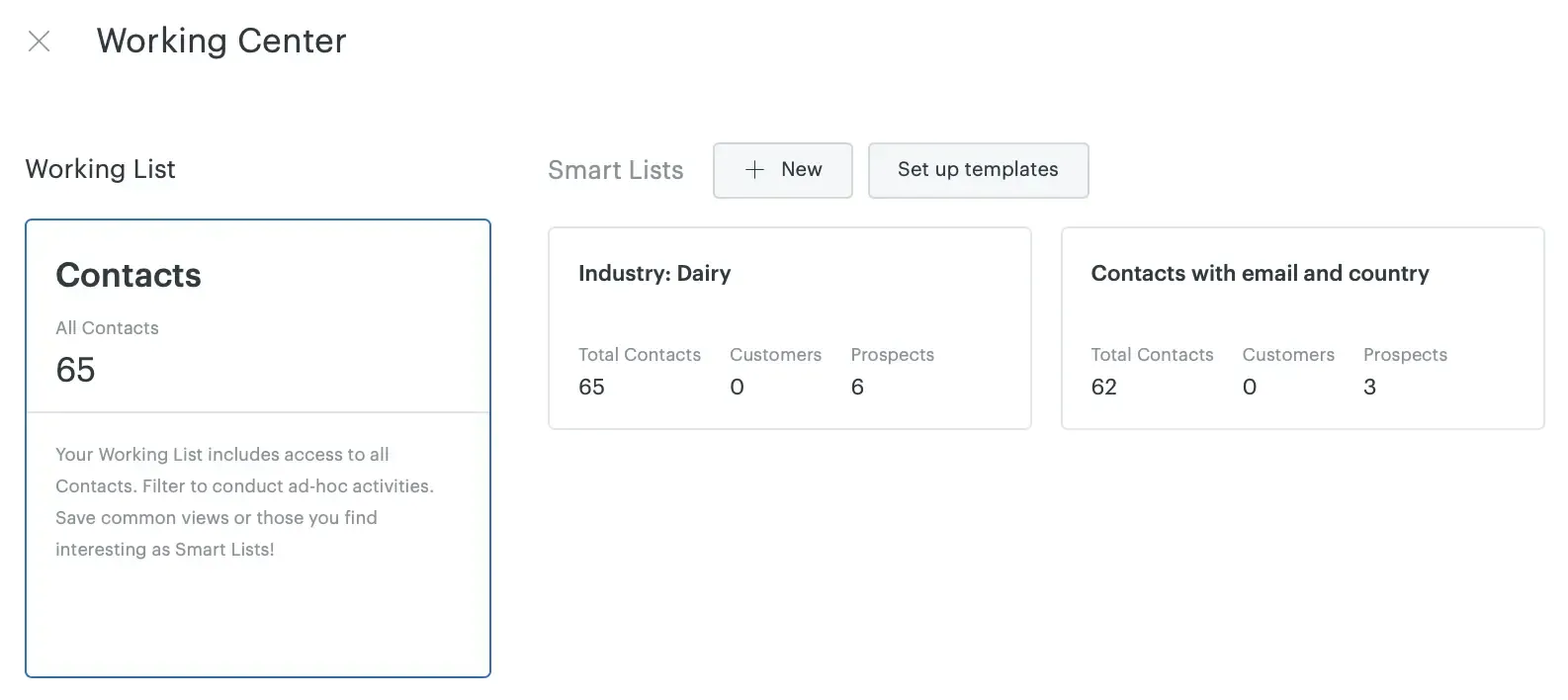
Smart Lists are mainly used in Zendesk Sell to create customized lists of records based on specific filters. Sales reps can apply criteria such as lead status, creation date, or other fields, save the filtered view, and work on that list separately.
Source: support.zendesk.com
Pipedrive does not have a direct equivalent to Zendesk Sell’s Smart Lists, but it provides similar filtering options that can be used to create targeted views of records. During migration, Smart List criteria can therefore be mapped to the corresponding filters in Pipedrive.
7. Custom objects
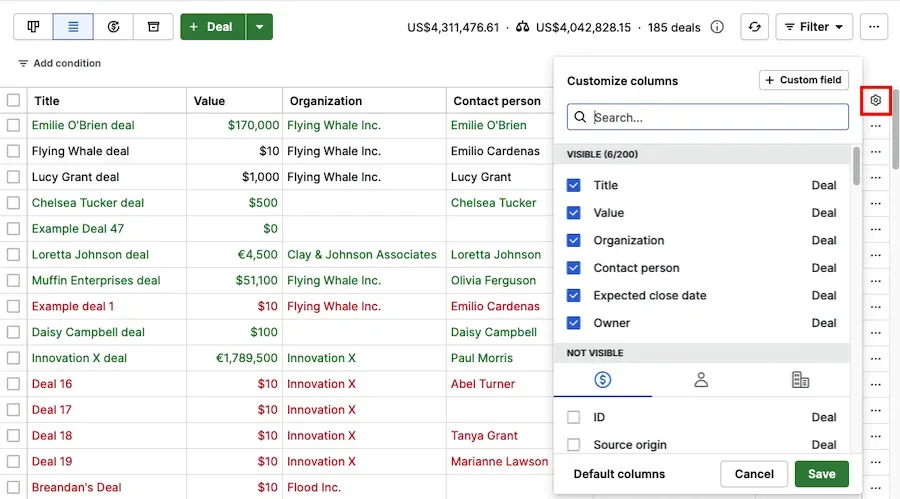
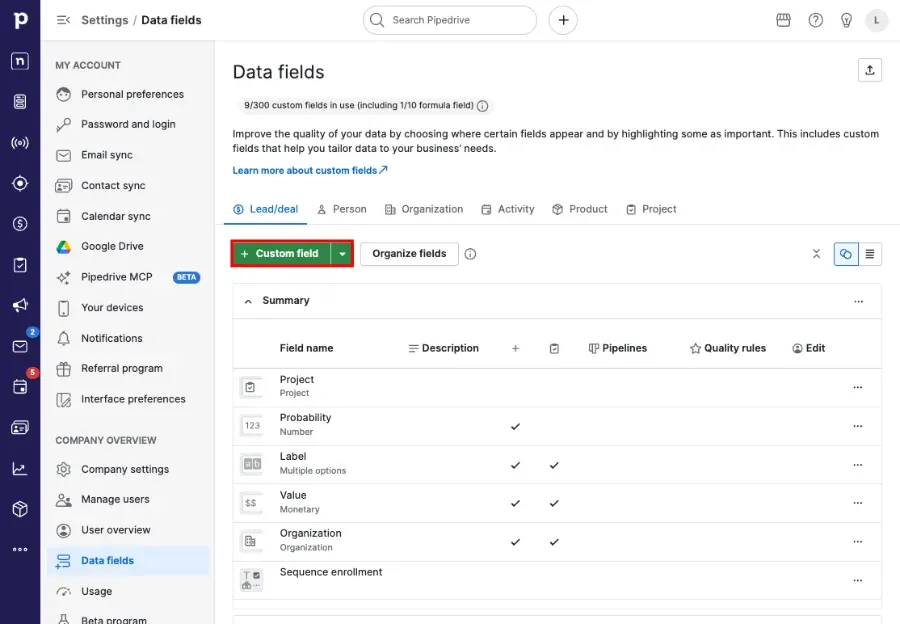
Pipedrive allows you to create custom fields that can be used to replicate the same type of additional data and objects used in Zendesk Sell. Before importing your data, you can manually create the required fields in Pipedrive and map the corresponding Zendesk Sell data to them.
Source: support.pipedrive.com
To create a custom field, go to the Account menu → Personal preferences → Data fields, select the relevant entity such as Lead/Deal, Person, Organization, Product, or Project, and click + Custom field. This allows you to structure Pipedrive to match the custom data you were managing in Zendesk Sell.
Looking for alternatives to Zendesk Sell? Check out our detailed guide to the best alternatives.
How to migrate from Zendesk Sell to Pipedrive?
Pipedrive gives you three main ways to move your data from Zendesk Sell: spreadsheet import, Import2, and API migration. The right option depends on the amount of data you have and how much control you need over the migration.
1. Import using CSV or Excel
The simplest option is to export your data from Zendesk Sell and import it into Pipedrive using CSV, XLS, or XLSX files. In Pipedrive, go to Tools and apps → Import data → Get started, then upload your file. You can map each column from your Zendesk Sell export to an existing Pipedrive field or a custom field. Pipedrive supports files of up to 50,000 rows and 50 MB per file, including data such as people, organizations, leads, deals, activities, and notes. It is recommended to start by importing organizations and people before moving on to other records.
2. Import2
Import2 is another option for migrating data from a previous CRM into Pipedrive. It is useful when you want to move a larger set of CRM data without manually preparing and uploading each spreadsheet. During the migration, your Zendesk Sell records can be mapped to the corresponding Pipedrive entities, helping preserve the structure of your sales data.
3. API migration
For teams that need more control over the migration, Pipedrive also provides an API that can be used to transfer data programmatically. This approach can be useful when you have a customized Zendesk Sell setup or need to migrate data that requires specific mapping or transformation before it is added to Pipedrive. It generally requires development resources to build and manage the migration.
What to map during migration
Before starting the migration, map your Zendesk Sell records to their corresponding Pipedrive entities. For example, Deals → Deals, Tasks → Activities, Tags → Labels, and Contacts → People/Organizations. Any custom fields should be created in Pipedrive before importing the data so they are available during field mapping. This helps preserve the structure of your existing sales data and reduces the amount of cleanup required after migration.
Bottom line
Moving from Zendesk Sell to Pipedrive is fairly straightforward if your data is well organized. If you need marketing and service tools alongside sales, our Zendesk Sell vs HubSpot comparison covers that route.
You can use Pipedrive’s built-in import for CSV or Excel files, Import2 for a more guided migration, or the API if you need a customized setup. The main work is mapping your existing Zendesk Sell data, such as contacts, companies, deals, tasks, tags, and custom fields, to the right Pipedrive fields before importing.

Geethapriya
Geethapriya is a Growth Marketer and Business Researcher who researches and writes about CRM, sales, marketing, and customer engagement. Her work focuses on understanding industry trends, customer and sales challenges, and how businesses can use technology to build more effective growth processes.

.webp?2026-09-10T10:50:01.560Z)